How to Add an AI Chatbot to Your Website, Then Test It With Chat Off
Add an AI chatbot to your website with a snippet or a builder switch, then test it twice: chat on against an answer key, and chat off with a route to a person.
In GoDaddy's builder, adding the chat bubble and turning on the AI that answers inside it are two separate steps.[1] A bubble on your homepage proves the bubble loaded, and not much else.
To add an AI chatbot to your website, use your builder's chat setting or paste the vendor's snippet. Then test it twice. With chat on, check replies against an answer key you wrote, including a recent change and a question your site can't answer. With chat off, a visitor should still find your hours and reach a real person outside the widget. Confirm a test message arrives.
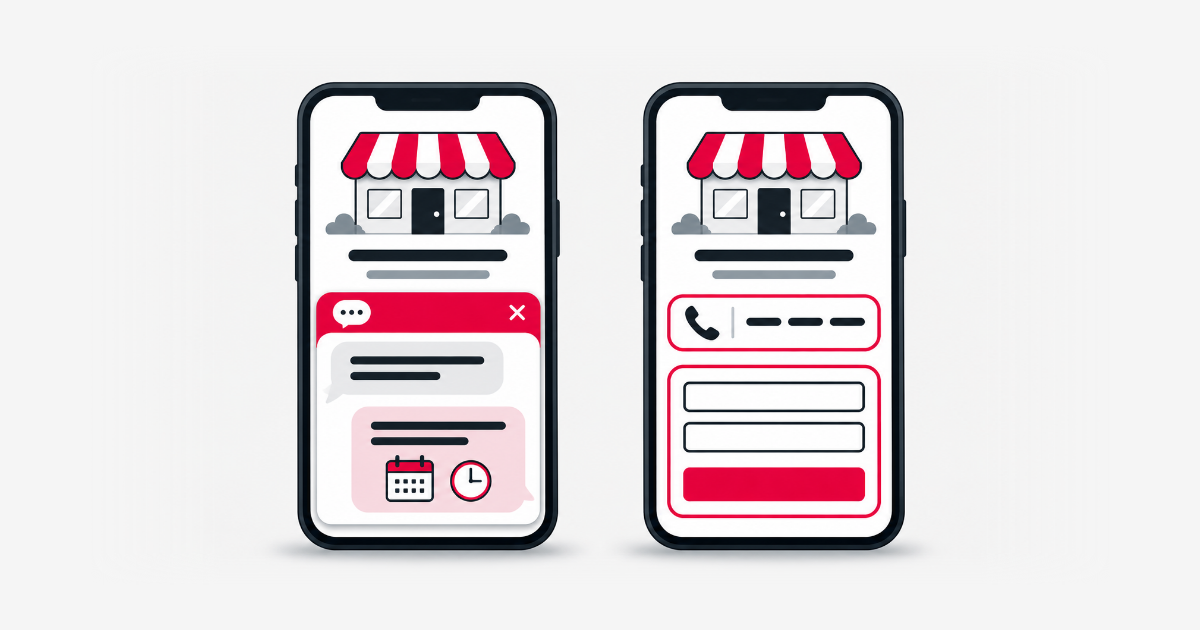
Two ways to add an AI chatbot to a website
The two vendor guides cited here show two different routes.
A builder setting. Some website builders have chat built in. In GoDaddy's Airo builder, you add a chat widget from the Inbox, then separately switch on "Enable AI Agent", which GoDaddy says can "answer on your behalf using what is already on your published site."[1] That's the vendor's description of its feature, not something I've measured.
An embed snippet. Standalone chatbot tools give you a few lines of code to paste in. Elfsight's guide, for example, says its snippet can go in a Custom HTML block, an embed element or your site-wide footer code.[2] Use whichever spot your own builder supports. An embed block inside one page's content puts the bot on that page. A site-wide code slot puts it everywhere, but check that your builder's footer slot really is site-wide before assuming so.
Either way, before you go further, write down one thing: how you turn it off. With a builder it's usually the same switch. With a snippet it means deleting the code from wherever you pasted it, so note exactly where that was. You'll need it for the second test, and on the day something goes wrong you won't want to be hunting for it.
Write the answer key before you ask it anything
This step is what makes the test worth doing. If you ask the bot questions without deciding the right answers first, a confident, fluent reply will feel correct. You'll grade it on tone.
Elfsight suggests testing with 10 to 15 real questions pulled from your inbox or contact form rather than invented ones.[2] That's good advice, and it's the starting point. I'd add two kinds of question that a pile of everyday FAQs won't cover:
- A fact you changed recently. New Saturday hours, a price that went up last month, a service you stopped offering. If the bot answers from your published pages, this is where a stale copy shows itself.
- A question your site doesn't answer. Something reasonable that isn't written anywhere on your site, like whether you can fit someone in today. The right reply is a polite "I don't know" plus a way to reach you. A made-up answer is a fail, however nicely it's worded.
For each question, write the answer you expect and the page on your site that backs it up. Here's a blank template. The result columns are empty on purpose: fill them in when you run it.
| Question (in a visitor's words) | Expected answer | Source page on your site | Bot's actual reply | Pass / fail |
|---|---|---|---|---|
| A real question from your inbox | ||||
| The same question, worded differently | ||||
| The fact you changed this week | ||||
| A question your site can't answer | Declines, offers a contact route | (none) |
Test one: chat on
Run every question in the key. Reword a couple of them the way a rushed customer on a phone would. Then compare each reply to what you wrote, not to how reasonable it sounds.
While you're there, check the widget itself, which has nothing to do with the AI. Tab into the chat panel and then try to tab back out. WCAG 2.2 requires that keyboard focus moved into a component can be moved away again (success criterion 2.1.2).[4] Look at whether the floating bubble covers anything a visitor needs, like a button or the last field of your form, since criterion 2.4.11 says a focused component shouldn't be entirely hidden by content the site author added.[4] And open the chat on a narrow phone screen to see whether the page underneath is still readable, which is the territory of criterion 1.4.10, reflow.[4]
Those are a sensible use of three WCAG criteria, nothing more. They aren't an accessibility audit, and passing them doesn't make the site compliant.
Test two: chat off
This one can feel like testing nothing. What you're actually checking is whether your site still works for a visitor who never gets the chatbot, which can happen for perfectly ordinary reasons:
- You or the vendor switched it off. Use the off switch you noted earlier.
- It's waiting for consent. GoDaddy says its chat bubble loads after cookie consent where the law requires it.[1] A visitor who ignores the banner may never see chat. If your site has a consent banner, decline it in a fresh browser and look at the page.
- The script didn't load. Many embedded chat widgets load third-party scripts, and third-party JavaScript adds network requests and other overhead to a page.[5] Requests sometimes fail or get blocked. In a test browser, block the chat script (a content blocker works) and reload.
- It loads but never answers. This one is sneaky, because the bubble looks fine. Send a message and watch for a reply that doesn't come.
Now, in each of those states, on your phone, do what a customer would do. Find your opening hours. Find a price or a "how much" answer. Then contact you, using the phone number, email address or form that sits on the page itself, outside the bubble. If you use a form, check the form on a phone for the small stuff too, like the keyboard type and whether you can scroll to the submit button.
Send a real test message. Then confirm somebody received it. A contact form that submits into an inbox nobody reads is the same as no contact form, and you won't find that out by looking at the page. It helps to give the fallback a named owner: one person who checks that test messages arrive and reruns this check after site changes.
When an answer comes out wrong, start with the page
Say the bot tells someone you close at 5 on Saturdays when you now close at 3. The temptation is to fiddle with the bot's settings or instructions. Look at the source page column first. If the bot answers from your published pages, check that page before anything else. If the page is already right, check what the bot is actually using, refresh it if needed, and ask the same question again.
If your published page still says 5, the bot may be answering correctly from a wrong page. Fix the page. If the page says 3 and the bot says 5, the bot may be working from an old copy (or pulling from somewhere else entirely), so look up where your tool gets its content and how that content gets updated. Then rerun the question, worded exactly as before, and see if the answer changed. If an answer that matters (a price, a policy, your hours) still comes out wrong, keep chat off until it doesn't.
HelpHub, an AI support tool that launched on Hacker News in 2023, described three ways of feeding it content: crawling site URLs, syncing from a CMS and adding content by hand.[3] Those are three different places a stale answer can come from, and your tool might use any of them. In the same thread, people trying the demo reported a question that got no answer and a request that timed out, and the team mentioned still offering Intercom chat "as a fallback if you need to talk to a human."[3] That's a 2023 thread about one product, so it's not evidence of how often chatbots fail. It's a nice clear picture of the difference between a bot that can't answer and a business that can't be reached.
Fixing the page fixes it for every visitor, chatbot or not, so it's worth sorting out who can publish the next correction before you need one. And one distinction, since it trips people up: the chatbot on your site answers visitors, which is a different job from an AI assistant that edits your site for you. Boomlink (where I work) is the second kind: its ChatGPT and Claude connections are for owners managing their site, not for answering visitors. If you do use an assistant to manage your site, it's worth knowing that reference material isn't permission to act.
"My chatbot already hands off to a human"
HelpHub's team, for example, pointed people to Intercom chat as their way to reach a human.[3] If your tool has a handoff, where the bot passes the conversation to you or collects contact details, that's useful while chat is working. But if the handoff lives inside the widget, then when the widget is blocked, waiting for consent or stuck, the handoff goes with it. It shares the exact failure you're testing for. Keep it, and keep a contact route on the page as well.
What this test doesn't tell you
Passing 15 questions means the bot answered those 15 questions well, on that day. It doesn't cover every way a visitor might phrase things, and it won't tell you how the bot behaves after your next price change, so run the changed-fact question again whenever you update something important.
It also doesn't speak to speed in any measured way. If you're curious, load the page with and without the widget on the same phone and connection and compare. One run on your own phone is a rough look, not a performance measurement.
And sometimes the honest result is to leave chat off. If you get a handful of questions a week, you have a good FAQ page and nobody has time to own the bot, chat off is a perfectly good answer.
The rule I'd use: if chat on fails and chat off passes, ship with chat off and fix the bot. If chat off fails, fix your site first, because that's the version some of your visitors are already getting.
References
- GoDaddy, "Airo AI Builder product update, November 2026." Describes adding a chat widget from Inbox, separately enabling the AI agent, answering from the published site, and loading the bubble after cookie consent where required by law. Vendor documentation. Accessed 28 November 2026. https://airo-builder.godaddy.com/discover/news/airo-ai-builder-product-update-november-2026
- Elfsight, "How to Add an AI Chatbot to Your Website." Covers snippet placement and advises testing with 10 to 15 real questions before going live. Vendor guidance. Accessed 28 November 2026. https://elfsight.com/guides/how-to-add-ai-chatbot-to-your-website/
- Hacker News, "Show HN" launch thread for HelpHub, 24 May 2023. The team's description of content sources and Intercom fallback, plus commenters' reports from the demo. Historical first-party and third-party accounts, not current product claims. Accessed 28 November 2026. https://news.ycombinator.com/item?id=36057074
- W3C, "Web Content Accessibility Guidelines (WCAG) 2.2." Success criteria 2.1.2 No Keyboard Trap, 2.4.11 Focus Not Obscured (Minimum) and 1.4.10 Reflow. Accessed 28 November 2026. https://www.w3.org/TR/WCAG22/
- web.dev, "Third-party JavaScript performance." Explains the network and processing overhead third-party scripts can add to a page. Accessed 28 November 2026. https://web.dev/articles/third-party-javascript