
Can ChatGPT Actually Manage Your Website? What Works, What Fails, and What to Set Up First
The headline is everywhere: manage your site through ChatGPT. The practical walkthrough is not. Here is what a non-engineer site owner actually does in the first three sessions, which tasks work, which fail, and the three things to understand before the first prompt.
The demos make it look settled. Someone types "update my homepage," the agent thinks for a second, and the change lands. The first real session usually goes differently. The agent doesn't recognize the site, or it can't find the page you meant, or it returns an error that reads like a broken integration. Nothing in the setup tutorial prepared you for that, because the setup tutorial assumed you already knew three things about using ChatGPT to manage your site.
Here is the first one, since most coverage buries it: the free tier of ChatGPT does not connect to your site at all. Custom MCP connectors require a paid plan.[5] That is the access gate, and it is the smallest of the three surprises waiting for a non-engineer who manages a live site and is deciding whether this is worth a week of their attention. The other two are about what the agent can see and what it remembers. Get all three right and managing drafts, metadata, categories, and settings through a chat window is faster than the dashboard. Misread any one of them and the first session feels broken.
| Before you start | Requires a paid ChatGPT plan (Plus at $20/month minimum) and a paid site plan. Developer mode is a manual toggle in ChatGPT settings, not a marketplace install. |
| What works | Text-layer and configuration tasks: drafting and tagging posts in one prompt, bulk metadata audits, category restructuring, portfolio-wide settings changes, comment moderation. Single-step, structured-data operations. |
| Sessions | The agent starts blank each time. Re-select the connector, name the site, and state what you are working on in your opening prompt. Continuity lives in the platform's activity log, not in the chat history. |
The access gate is higher than it looks
Before any of this is useful, you are making a cost decision, and it is better to make it on purpose than to discover it three steps into setup.
The minimum is ChatGPT Plus at $20 a month. The free tier does not support custom MCP connectors, and developer mode, the toggle that turns connectors on, lives behind a paid plan.[5] If you run a team and assumed you could switch this on for a shared workspace, check first: as of mid-2026, custom MCP connectors are not yet available in ChatGPT's Teams workspace, only in the individual Plus, Pro, and Enterprise tiers.[5] There is a second gate on the site side too. Connecting a WordPress.com site, the most documented case today, requires a paid site plan; free WordPress.com sites are excluded.[1]
The setup itself is a manual toggle, not a marketplace install. In ChatGPT you go to Settings, then Apps, then Advanced, switch on developer mode, create an app, paste in the site's MCP URL, and authorize through OAuth.[1] The OAuth flow is already written up well in the official docs, so I won't reproduce it here. The point worth carrying forward is narrower: this is not a free experiment you try on a whim. It is a roughly $20-a-month commitment plus a paid site plan, and knowing that upfront is the difference between evaluating it and abandoning it mid-setup.
Once you are past the gate, the more important question is what you actually handed the agent access to, and how it sees your site.
The agent reads your content layer, not your pages
This is the mental-model shift that prevents the largest category of first-session disappointment, and almost no non-technical coverage states it plainly.
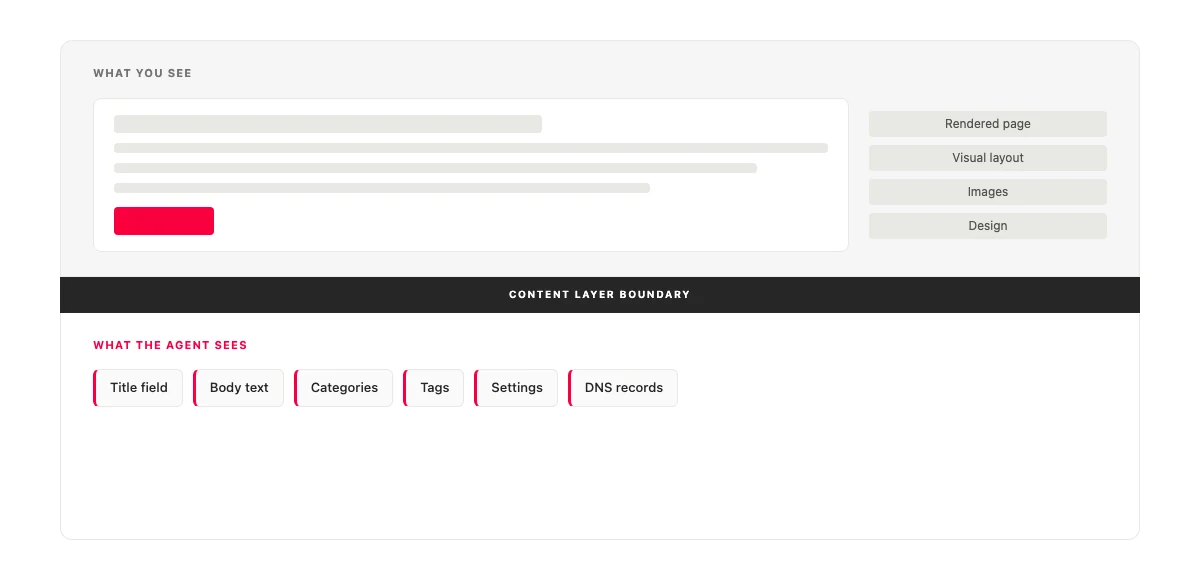
When you connect ChatGPT to a site through MCP, the agent reads and writes structured data: post titles and body text, categories and tags, meta descriptions, comment status, the plugin list, DNS records, and site settings like title, tagline, and timezone.[2] That is a real and useful surface. What it is not is your website. The agent has no visual access. It cannot look at your header and tell you it feels dated, and it cannot see that your call-to-action button is the wrong shade of blue, because to the agent there is no button and no color, only a content record with fields.
So the "update my homepage" demo is doing something subtler than it appears. If your homepage is a post or page whose content lives in a title field and a body field, the agent can rewrite that text. If your homepage is a visual layout assembled in a page builder, the arrangement is stored separately in template logic the agent cannot reach. The MCP protocol is about data and tool access, not visual site editing. The limitation is real, and naming it is more useful than pretending it isn't.
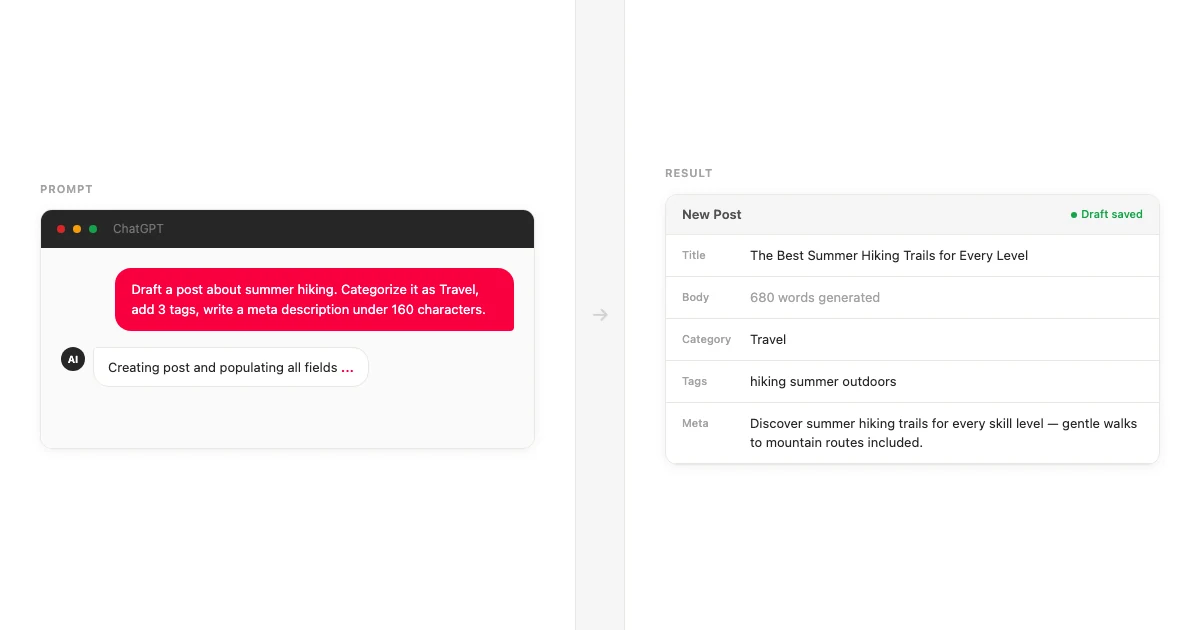
Held to that boundary, a prompt like "Draft a post about summer hiking, categorize it as Travel, add three tags, and write a meta description under 160 characters" works, because every instruction maps to a field.[3] A prompt like "Redesign my homepage so the CTA is more prominent" does not, because the agent has nothing to redesign. The same sentence pattern, two completely different outcomes, and the dividing line is whether you asked about data or about a rendered view.
There is a third thing the demos skip, and it shows up the second time you open a chat.
Every chat starts from scratch
The agent does not remember you. Not last week's conversation, not the tone brief you worked out together, not even which site you mean.
That is by design, and the protocol is moving further in that direction. The MCP release candidate dated 2026-07-28 makes sessions stateless by default: it drops the persistent session ID, and every request stands on its own with no assumption that anything came before it.[7] ChatGPT's current implementation already behaves this way in the part that matters most to a daily user. You re-select the site connector in each new chat, and the agent opens that chat with no memory of the last one.
For someone who has started thinking of the agent as "the person who helps me run my site," opening session two and being met with a blank stare is genuinely disorienting. It is also avoidable. The fix is to treat the opening prompt as a reset: name the site, state what you are working on, and paste back any decisions that need to carry over, like the category structure or the voice you settled on. The continuity you expected the chat to hold lives somewhere else. On WordPress.com, every change the agent makes is recorded in the site Activity Log, which is the audit trail the conversation itself doesn't keep.[1] That platform-side record, not the chat history, is where session-to-session memory actually lives, which is also why the draft toggle and the change log matter once an agent is making edits.
With the gate, the scope, and the memory model clear, the only question left is what is actually worth doing in week one.
What you can manage through ChatGPT, what fights back, and whether it's safe
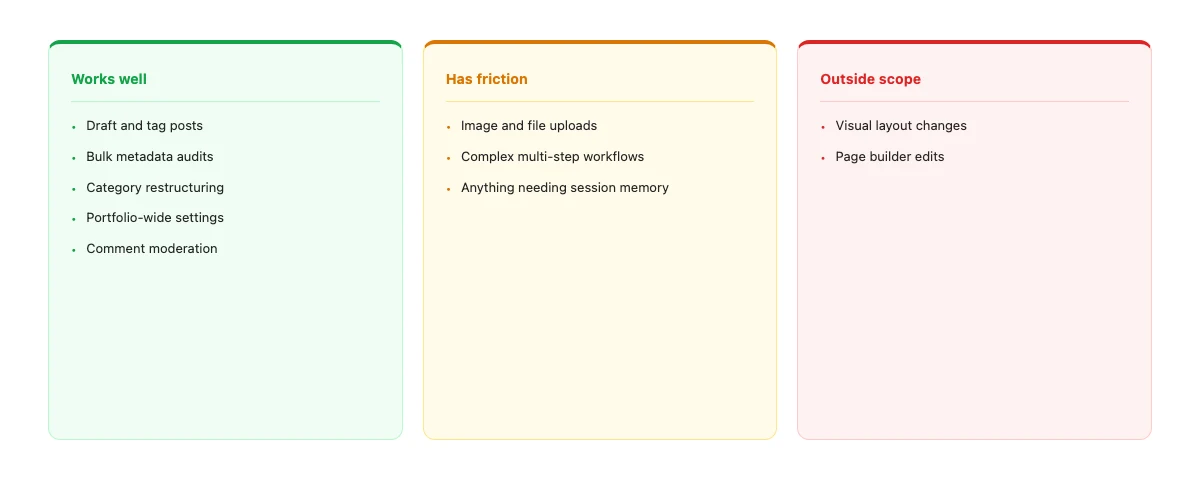
The honest task map sorts into three columns, and the first week goes better if you stay in the first one.
The work that lands cleanly is text-layer and configuration work, especially in bulk. Drafting and tagging a post in a single prompt is the canonical example, and it works because each instruction is a field.[3] So does a metadata sweep: "Find every post missing a meta description and write one for each." So does restructuring, like "Create a Recipes category with subcategories for Breakfast, Lunch, Dinner, and Desserts." Settings changes scale in a way the dashboard can't match; managed hosts have begun exposing portfolio-wide control, so a single prompt can update the timezone across every site you run at once.[4] Comment moderation queues, DNS record edits, SSL checks, and plugin install-and-activate all sit in this same comfortable lane.[2] The pattern: if it is a single, well-defined operation on structured data, it tends to just work.
The middle column is where the friction lives. Image creation and editing is not an MCP function at all; you need a separate workflow for that. Uploading binary files like images or PDFs used to be awkward and has improved with one-time upload URL tools, but it can still involve a manual step rather than a clean chat instruction.[6] And reliability degrades as complexity climbs. Developers connecting servers that expose dozens of tools report HTTP 424 errors on complex calls, dropped connections, and the agent occasionally fabricating a tool response instead of actually invoking the tool.[5] The practical read for a non-engineer: favor single-step operations early, and don't trust a five-step "do all of this in one go" prompt until you have seen the simpler ones behave.
The third column is what the agent simply can't reach: visual layout changes in a page builder, and anything that needs the agent to look at the rendered page and exercise judgment. Those are not slow or unreliable. They are out of scope, for the reason the previous section laid out.
Worth saving this map somewhere you'll find it before your first session.
That leaves the question a careful site owner should be asking: is it safe to give an AI agent write access to a live site? The strongest skeptical voice, the one that called developer mode "powerful but dangerous," is not wrong on the facts. The agent does get full read and write access scoped to your account. Three things constrain what that actually means in practice. Every write operation requires your confirmation before it executes, so nothing changes without a yes.[1] The agent inherits your role permissions, so an authorization granted at contributor level cannot publish, only draft.[2] And deletions are mostly recoverable: deleted posts go to the trash with a 30-day recovery window, though category and tag deletions are permanent, which is exactly why the confirmation step exists for those.[3] The honest summary is that this is not a set-it-and-walk-away tool. It is a tool you supervise, which is also the right frame for who actually holds authority over the changes an agent makes.
The readers who get real value out of this in week one are the ones who understood the scope before they typed the first prompt. Not "ChatGPT manages my site." The truer sentence is narrower: ChatGPT manages the content and configuration layer of my site, in sessions that don't carry memory, starting at $20 a month. That smaller claim is the one that holds up, and it is the one that makes the tool genuinely useful instead of quietly disappointing.
It is also worth knowing this is a moving target. The protocol underneath all of this was donated to the Linux Foundation's Agentic AI Foundation in December 2025, which means the rough edges are transitional, not permanent.[8] The window where this still looks "too developer-facing" is closing. If you want to understand where a connected chat agent sits relative to the website builders and operators it gets confused with, the taxonomy of what these tools are actually called is the next thing to read.
If you want to run the same workflow on a site that was built for it from the start, that is what a ChatGPT website builder is: the MCP connection, the write scope, and the publish step are the product rather than an add-on to an existing CMS.
We publish practical guides on AI site tools as they mature, with the friction named as plainly as the capabilities and no demos doing the heavy lifting. If that is the version you want in your inbox, subscribe to the Boomlink blog.
References
- WordPress.com Support, "Edit your site with ChatGPT." Documents the setup path (ChatGPT Settings > Apps > Advanced > developer mode > create app > MCP URL > OAuth authorize), the requirement for a paid ChatGPT plan and a paid WordPress.com site plan, the confirmation-before-write model, and the site Activity Log as the record of agent-made changes. https://wordpress.com/support/mcp/connect-chatgpt/
- WordPress.com Support, "MCP Capabilities." Full categorized list of the read and write capabilities exposed over MCP: sites, posts, pages, design, domains and DNS, plugins, account, and users; role-scoped permissions; and the confirmation requirements for sensitive operations. Source for the content-layer scope described in this post. https://wordpress.com/support/mcp/mcp-capabilities/
- WordPress.com Blog, "AI agents can now create and manage content" (published 2026-03-20). Source for the canonical multi-field prompt example ("Publish it as a draft, categorize it as 'Travel,' add relevant tags, and write me a meta description under 160 characters"), the confirmation-before-action model, and the 30-day trash recovery window for deleted posts. https://wordpress.com/blog/2026/03/20/ai-agent-manage-content/
- Pressable, "Control Your WordPress Hosting With AI." Mainstream hosting provider shipping an MCP integration covering site creation, plugin management, log access, and FTP, including the portfolio-wide use case of auditing or updating settings across every site in an account from a single prompt. https://pressable.com/blog/pressable-mcp-control-your-wordpress-hosting-with-ai/
- OpenAI Developer Community, "MCP server tools now in ChatGPT, developer mode." Source for the plan requirements (Plus, Pro, and Enterprise support developer-mode connectors; the free tier does not; ChatGPT Teams workspaces did not yet support custom connectors as of mid-2026) and for documented reliability issues: HTTP 424 errors on complex tool calls, fabricated tool responses, and disconnections with servers exposing many tools. https://community.openai.com/t/mcp-server-tools-now-in-chatgpt-developer-mode/1357233
- Meow Apps, "How To: Connect ChatGPT to WordPress with MCP." Independent technical guide documenting a plugin that exposes 30+ tools across posts, media, comments, users, themes, and plugins; the OAuth scoping to the connecting user's account and role; and the practical friction around binary file uploads before and after one-time upload URL tooling. https://meowapps.com/chatgpt-wordpress-mcp/
- "MCP Goes Session-Less: What the 2026-07-28 Release Candidate Actually Changes." Describes the MCP release candidate making sessions stateless by default: no persistent Mcp-Session-Id, every request standing alone, and persistent state requiring deliberate, explicit design rather than being assumed by the protocol. https://medium.com/@sainitesh/mcp-goes-session-less-what-the-2026-07-28-release-candidate-actually-changes-99b669ad1f61
- "What's New in MCP in 2026." Source for the protocol timeline and the December 2025 donation of MCP to the Linux Foundation's Agentic AI Foundation, marking its shift from a single-vendor project to vendor-neutral infrastructure. https://strategizeyourcareer.com/p/whats-new-in-mcp-in-2026